Home / Guides / Coupon basics
How to use a coupon code online, step by step
Where the promo code box hides, when to enter the code, and how to check the discount really applied before you pay. A simple walkthrough for any online store.
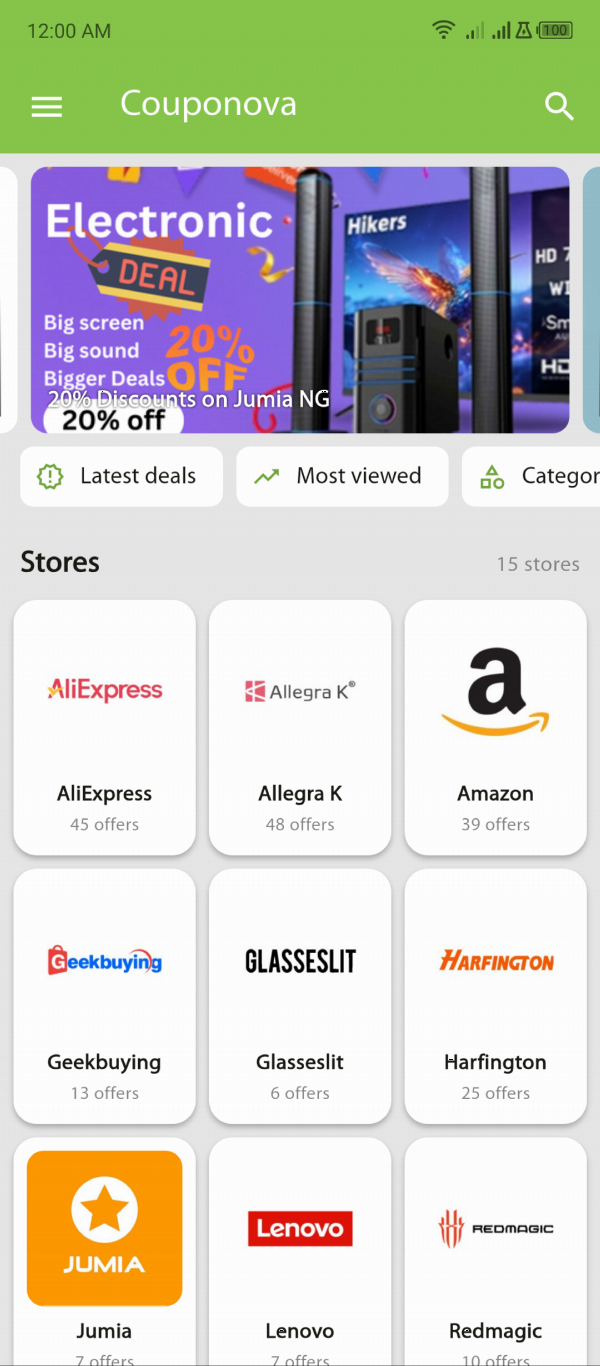
Using a coupon code takes less than a minute once you know where to look. The steps below work for almost every online store, from big marketplaces to small brand shops. If you are using Couponova, the first two steps happen on our site or in the app; the rest happen on the store's site.
Step 1: Find the right code and read its conditions
Start from the store you are about to buy from. On Couponova, open the store's page and look at the offers marked Code. Each offer shows what it gives you (for example "15% off sitewide" or "$10 off $60") and, when the store provides one, the end date.
Open the offer and read the details before you go further. The conditions that matter most:
- Minimum spend: does your order need to reach a certain value?
- Exclusions: are sale items, certain brands or categories left out?
- Who can use it: new customers only, members, app users?
- Where: is it limited to one country or regional site?
Knowing these up front saves the frustration of a code that fails at the last step. If it does fail, our list of 12 reasons promo codes don't work will usually tell you why.
Step 2: Copy the code and open the store
Tap Copy code, then Go to store. Opening the store through the link matters for two reasons: some promotions only activate through a partner link, and it lets the store know Couponova sent you, which is how we keep the service free. It never changes your price. Our affiliate disclosure explains how this works.
Step 3: Build your cart
Add the items you want. Keep the conditions in mind: if the code excludes sale items, check each product page for a sale badge. If there is a minimum spend, look at the cart subtotal before you head to checkout.
Step 4: Find the code box
Stores put the box in different places and call it different things. Look for:
- "Promo code", "Discount code", "Coupon code", "Voucher" or "Gift card or discount code"
- A small link such as "Have a code?" or "Add promo code" that expands into a box
- A field in the cart page, or in the order summary on the payment page
On mobile, the box is often collapsed inside the order summary at the top or bottom of the checkout. Tap "Show order summary" if you can't see it.
Step 5: Paste, apply and check
Paste the code and press Apply. Then look at the order summary. A successful code shows up as its own line, such as "Discount (SAVE15): -$9.00", and the total drops. If you see a message instead, read it carefully: "minimum not met" and "not valid for items in your cart" each have a clear fix.
If pasting doesn't work, delete the text and type the code by hand. Copying can pick up a hidden space.
Step 6: Review before you pay
Before you confirm, check three things:
- The discount line is still there. Some checkouts recalculate when you choose shipping or payment and quietly drop a code that no longer qualifies.
- Shipping costs haven't eaten the saving. A $5 discount isn't much use if the order now carries $8 shipping you would otherwise have avoided.
- The currency and delivery country are what you expect, especially on international stores.
What about deals with no code?
Many offers on Couponova are marked Deal rather than Code. These are discounts the store applies automatically: a sale price, a bundle, free shipping over a threshold. You don't type anything. Open the deal through Couponova, check that the price on the store's page matches the offer, and buy as normal. The guide to coupon codes vs deals vs cashback covers the differences in more detail.
After you order
Keep the order confirmation email. If you return part of the order later, the refund is usually reduced by the share of the discount that applied to those items; our guide to returns when you used a coupon explains how that works.
And if the code worked, or didn't, tell other shoppers: answer "Did this work?" on the offer page. Those votes are how we keep the list honest.
Common questions
Where do I enter a coupon code when shopping online?
In the box labelled promo code, discount code, coupon or voucher. It is usually in the shopping cart or in the order summary on the payment page, sometimes behind a link such as "Have a code?".
Do I need a code to get a deal?
No. Offers marked as deals are applied automatically, through a sale price on the product page or a discount in the cart. You only type something for offers marked as codes.
How do I know if my coupon code worked?
A working code appears as its own line in the order summary, for example "Discount (SAVE15): -$9.00", and the total goes down. Check it again just before you pay, because some checkouts drop a code after shipping or payment changes.
Store policies, prices and promotions change often. We check our guides regularly, but always confirm the details on the store's own site before you buy. Found something out of date? Tell us.